Facebook
Instagram
Drop In
BOOK FREE NO-SWEAT-INTRO
  • Home
  • Start Here
  • About Us
    • Our Mission
    • Our Team
  • More Info
    • Schedule
    • Pricing
    • Drop In
    • Andfit Shop
  • Programs
    • Group Training
    • No Sweat Intro
    • And1 Personal Coaching
    • Group Classes
  • Blog
  • Contact

MyFitnessPal Guide

April 26, 2020kody
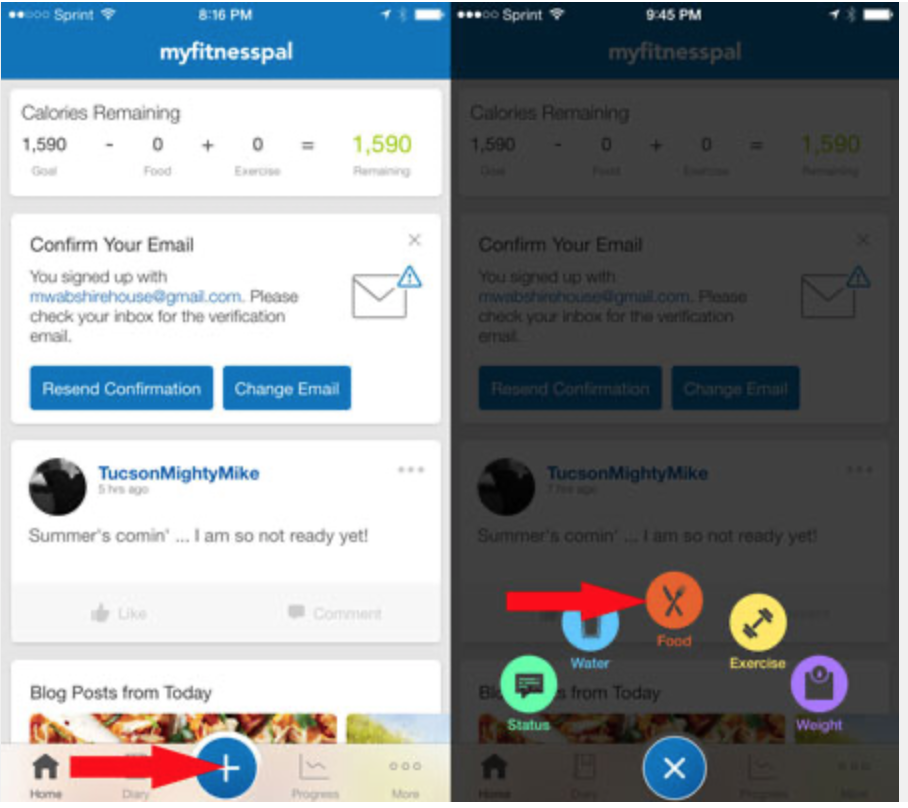
1. Tap the + sign from anywhere in the app.

The big blue plus sign in the middle of the MFP toolbar will reveal options to add one of five things: status update, water, food, exercise, or weight. Tap the red food button in the middle to get to the food diary.
2. Which meal are you entering?

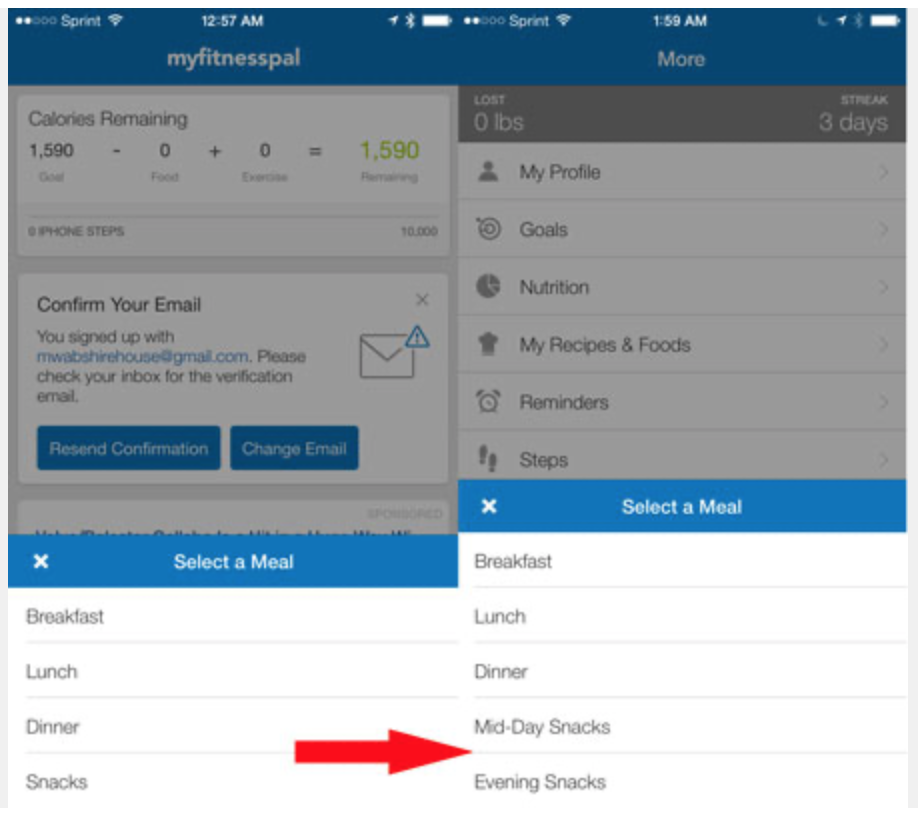
Tap the meal you want to document. You can enter your meals in any order.

You can add or change the names of your default meals only through myfitnesspal.com — you can’t do it through mobile app. For example, if you find yourself snacking a lot later at night, you might want to log those snacks separately from what you have during daytime hours. You’ll be surprised how fast that evening graze is costing you in calories!

3. Type the name of the food.

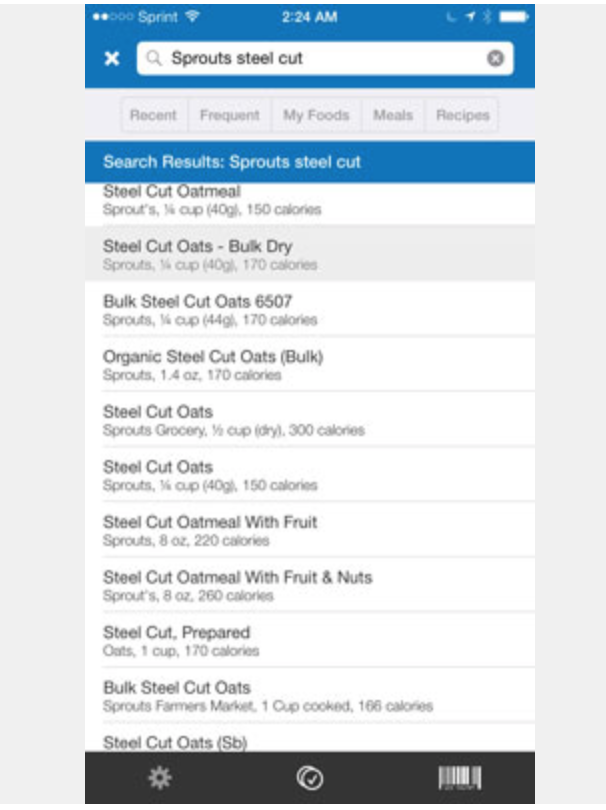
If what you ate was a brand-name item or from a well-established restaurant (fast food or otherwise), start with the brand name, then other descriptors. If not, just type as much as is needed to generate a list from which to choose. Chances are after the first few letters the item may appear; if not, finish typing and tap Search.

In many cases, you will find entirely too many options: several entries with the same or similar names, but conflicting nutritional data, and it will be hard to determine which one is the right one for your needs. Try for the best match. You might need to look up an item on the food company’s website to confirm which data is correct. Tap whichever one you think will work best, and the food’s nutritional values will appear.

If what you ate was a brand-name item or from a well-established restaurant (fast food or otherwise), start with the brand name, then other descriptors. If not, just type as much as is needed to generate a list from which to choose. Chances are after the first few letters the item may appear; if not, finish typing and tap Search.

In many cases, you will find entirely too many options: several entries with the same or similar names, but conflicting nutritional data, and it will be hard to determine which one is the right one for your needs. Try for the best match. You might need to look up an item on the food company’s website to confirm which data is correct. Tap whichever one you think will work best, and the food’s nutritional values will appear.

4. Set the serving size.

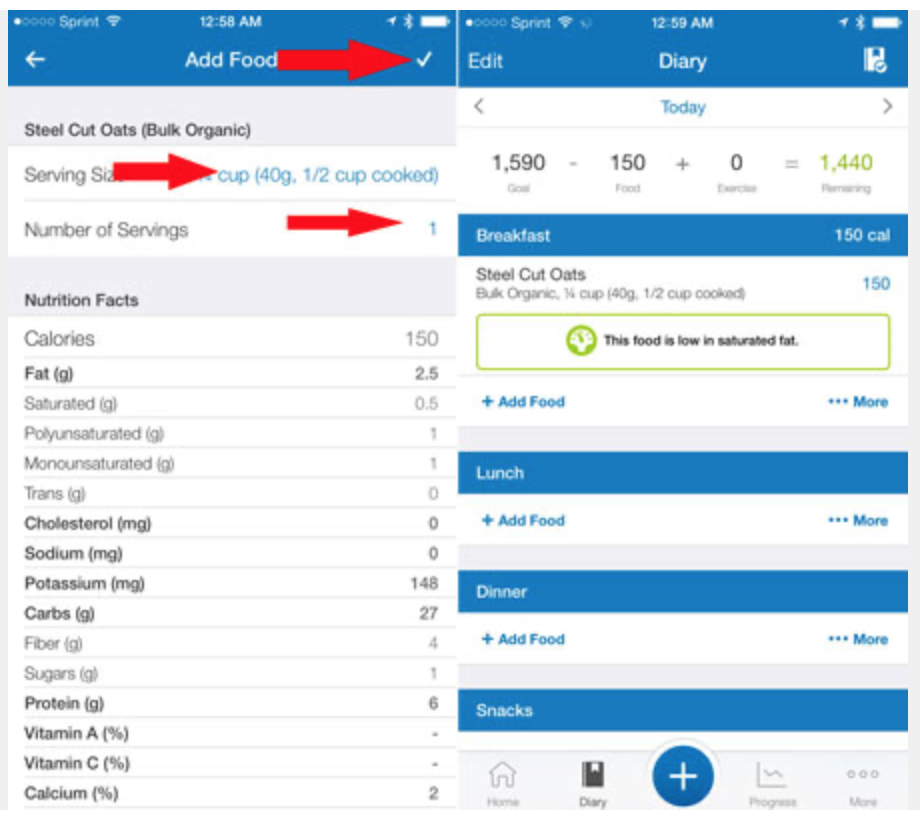
Sometimes the only available serving size does not match what you ate. You may need to adjust one or both of them. Just tap on it and dial in the more accurate numbers for the serving. When you’re satisfied that it’s close enough, tap the check mark to log the food.

5. Add more food.

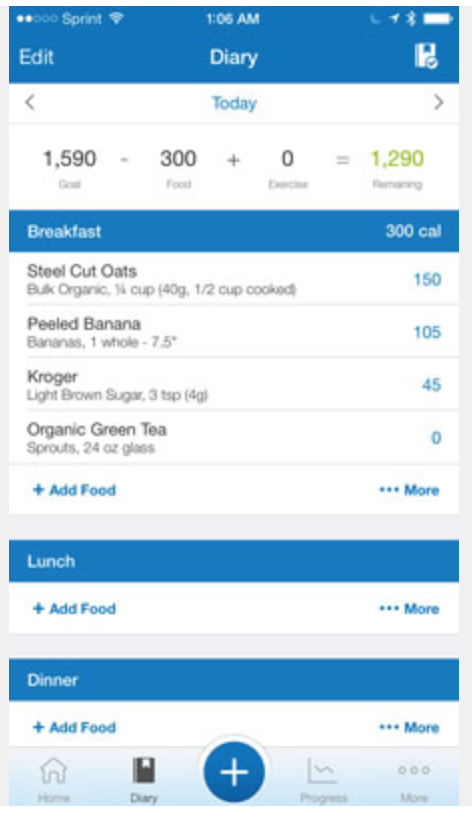
Keep going until you have added everything you ate and drank at that meal. You’ll notice at the top, your remaining calories have been reduced according to the number of calories you just consumed.

If this combination of foods is something you eat regularly, consider saving it as meal. Next time you eat it, you can select the whole meal instead of each individual item, saving you several taps and clicks and other extraneous gestures. To save a meal, tap the More button and tap Save Meal.

6. Add the rest of your meals throughout the day.

Continue in this fashion as the day goes along. Don’t forget to add your water consumption —drinking water is very helpful with weight loss and appetite control.

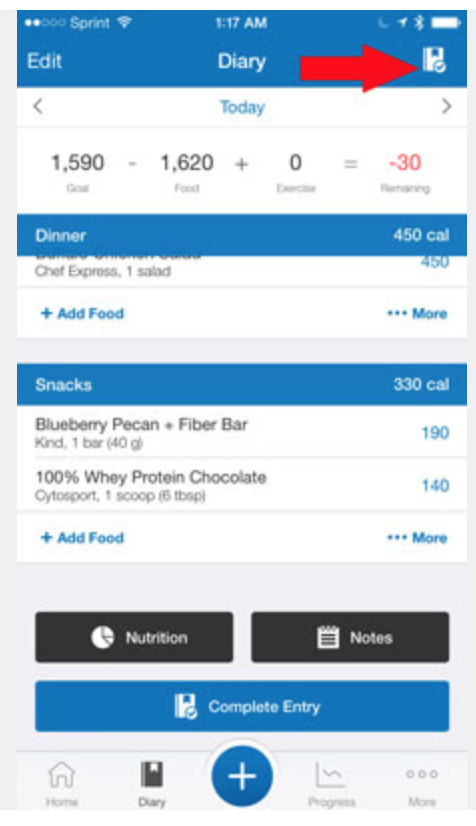
When you’re done logging food for the day, tap the Complete Entry icon to complete and save the entire entry. After a moment, MyFitnessPal will calculate how well you did in meeting your daily goals and then present you with an estimate of what you would weigh in 5 weeks if every day were like the one you just finished.

If you had a good day, seeing that will probably be exciting. If you didn’t do so well that day, the message might not be such a thrill, but hopefully will inspire you to do better the next day.

Continue in this fashion as the day goes along. Don’t forget to add your water consumption —drinking water is very helpful with weight loss and appetite control.

When you’re done logging food for the day, tap the Complete Entry icon to complete and save the entire entry. After a moment, MyFitnessPal will calculate how well you did in meeting your daily goals and then present you with an estimate of what you would weigh in 5 weeks if every day were like the one you just finished.

If you had a good day, seeing that will probably be exciting. If you didn’t do so well that day, the message might not be such a thrill, but hopefully will inspire you to do better the next day.

7. Scan an item’s UPC code.

Oops! You forgot about that Kind bar you scarfed down after the gym. If you need to add an item after you’ve completed the day’s entry, it’s not a problem; just go through the same steps.

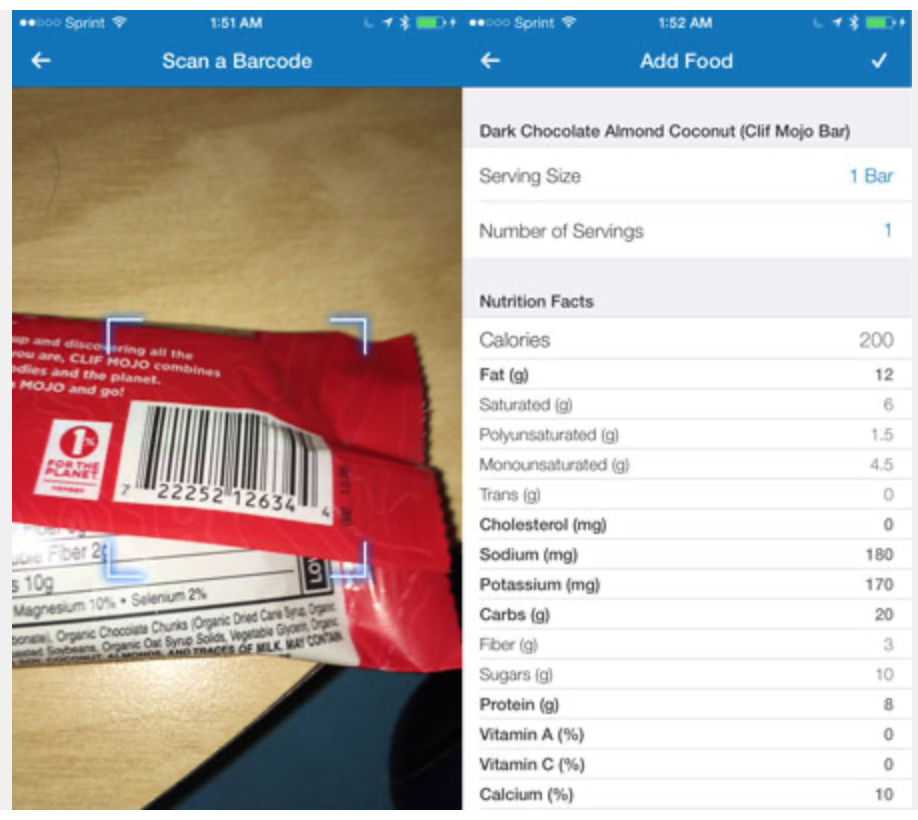
The Kind bar has a bar code, so you can scan that and bring up all the info you need on the snack. If it looks right, just tap the checkmark to add the bar to your diary.

8. Import a recipe and Log the serving.

This feature works both on the desktop and on your mobile device.

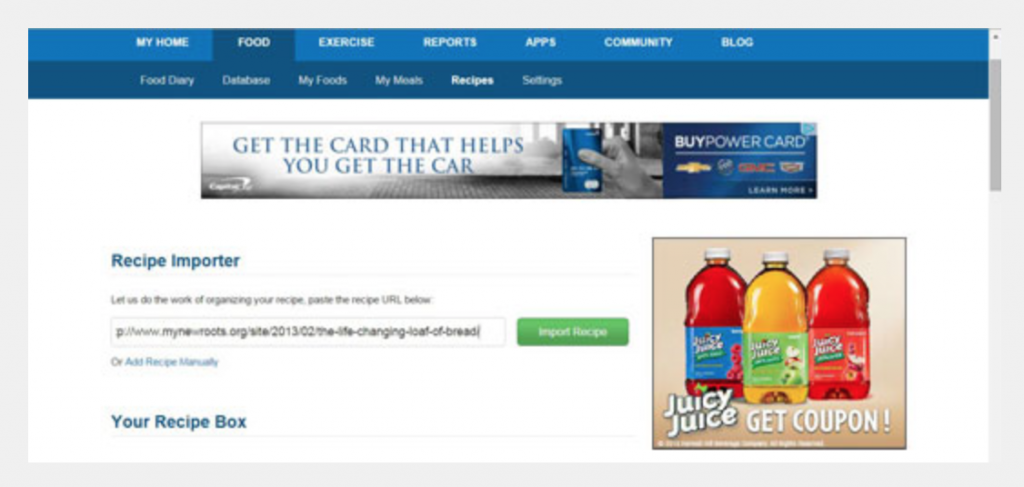
What if you find a great recipe online (or elsewhere) you want to try, but you’re not sure how to log it in your diary. You want to be true to your nutrition journaling, but the recipe just doesn’t give you that kind of information.

MFP says “No sweat!” Just plug in the URL for the recipe (or type in the ingredients and total servings) and click Import Recipe.

After a few seconds, MFP spits out the familiar Nutrition Facts panel for your recipe. You can log a serving of it directly from this screen, before you forget! And now the recipe is in your database, so you won’t have to ever go to “all that trouble” again.

Previous Post DAY 30 Next Post DAY 31
4 South Street, Auckland 1010
[email protected]

We are Social!

Facebook
Instagram

Recent Articles

  • How to make huge changes in your life
  • Why we don’t do Fitness Shortcuts
  • How to boost your metabolism
  • New Year Resolutions Reloaded
  • Get out of your comfort zone
  • Are you ‘really’ tired?

Quicklinks

  • Our Mission
  • Your Team
  • Our Location
  • Free No-Sweat-Intro
  • And1 Personal Coaching
  • Drop In
  • Andfit Shop
  • Membership Cancellation
  • Membership Hold
  • Contact Us

BOOK NOW

Let’s Get Started!

  • Privacy Policy
  • Terms And Conditions